Created by an Arc diehard. Crest keeps the ideas worth carrying forward—Spaces, a calm sidebar, Peek, command-first browsing, and real separation between contexts—and makes them feel at home on Mac, iPad, and iPhone.
WorkFocus has a homePersonalA world of your ownStudioMake something lastingPrivateLeave no trail
Independent and not affiliated with Arc.
Spaces · A calmer sidebar · Peek · Quick Window · Native on Mac, iPad, and iPhone ·
Why Crest exists
Arc made browsing feel personal. Crest keeps that feeling going.
Crest began with a simple idea: keep what made Arc special, be more careful about boundaries, and feel at home on every Apple device.
What Arc got right
The ideas from Arc that were worth keeping
SpacesDifferent parts of life stay visibly separate.
Sidebar-firstTabs become places, not disposable labels.
PeekLook into a link without losing where you were.
Command-firstMove, search, and act without hunting through chrome.
Quick WindowTiny Arc’s lightweight handoff for external links, with a choice to keep or close.
What Crest changes
Spaces with firmer boundaries
Full isolationSessions, cookies, history, passwords, and WebKit data stay apart.
Native mobileThe same browser model extends naturally to iPad and iPhone.
Your own standardLayered crests and palettes make every Space unmistakable.
Tools in contextLocalhost controls, credentials, and site permissions belong to the right Space.
Made for Apple devices
Crest follows the shape of each screen
The same browser should fit every device without squeezing a desktop layout onto a phone. Spaces and tabs stay familiar while the interface adapts to Mac, iPad, and iPhone.
01
Crest for Mac
Room for the full sidebar
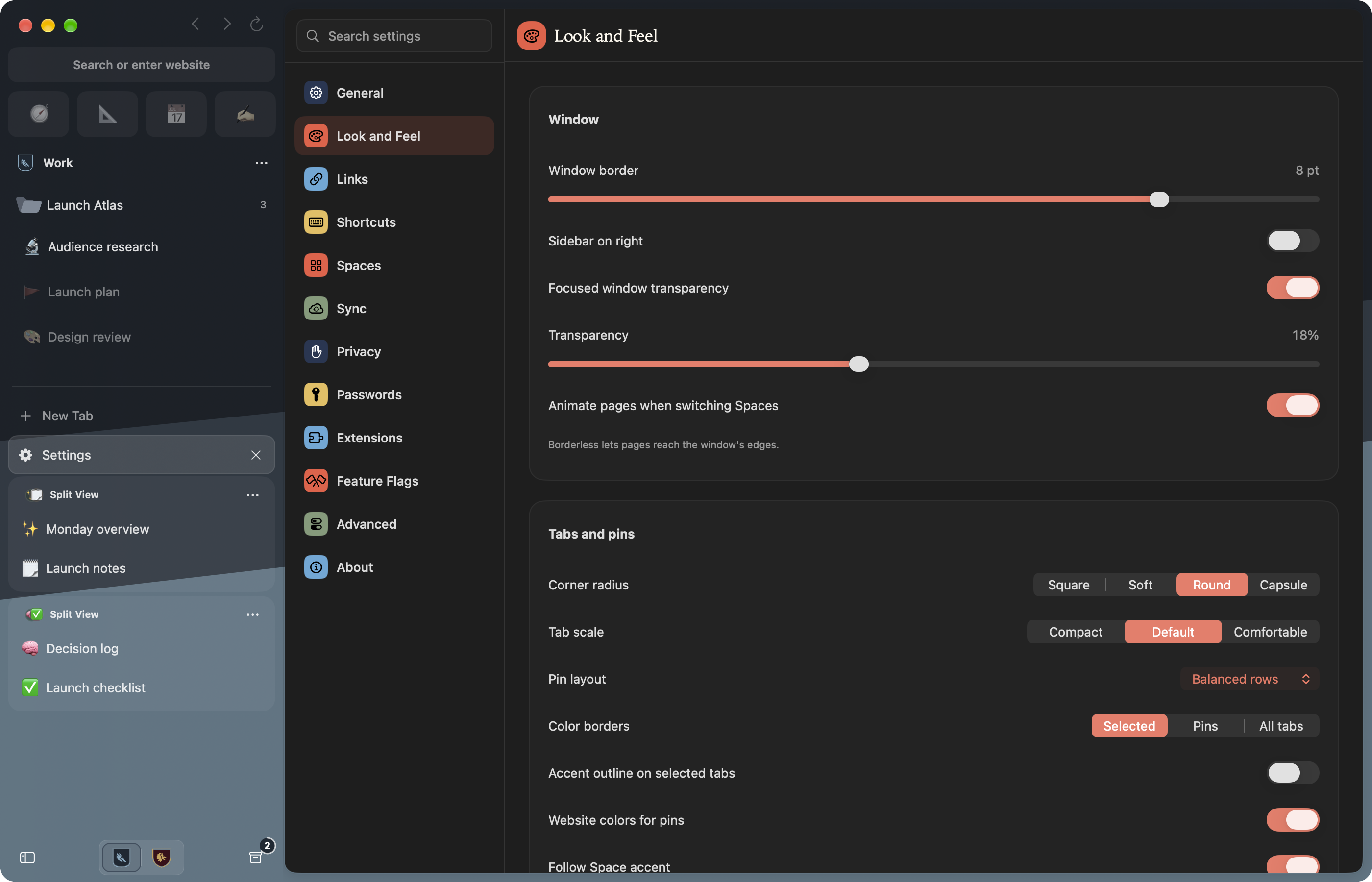
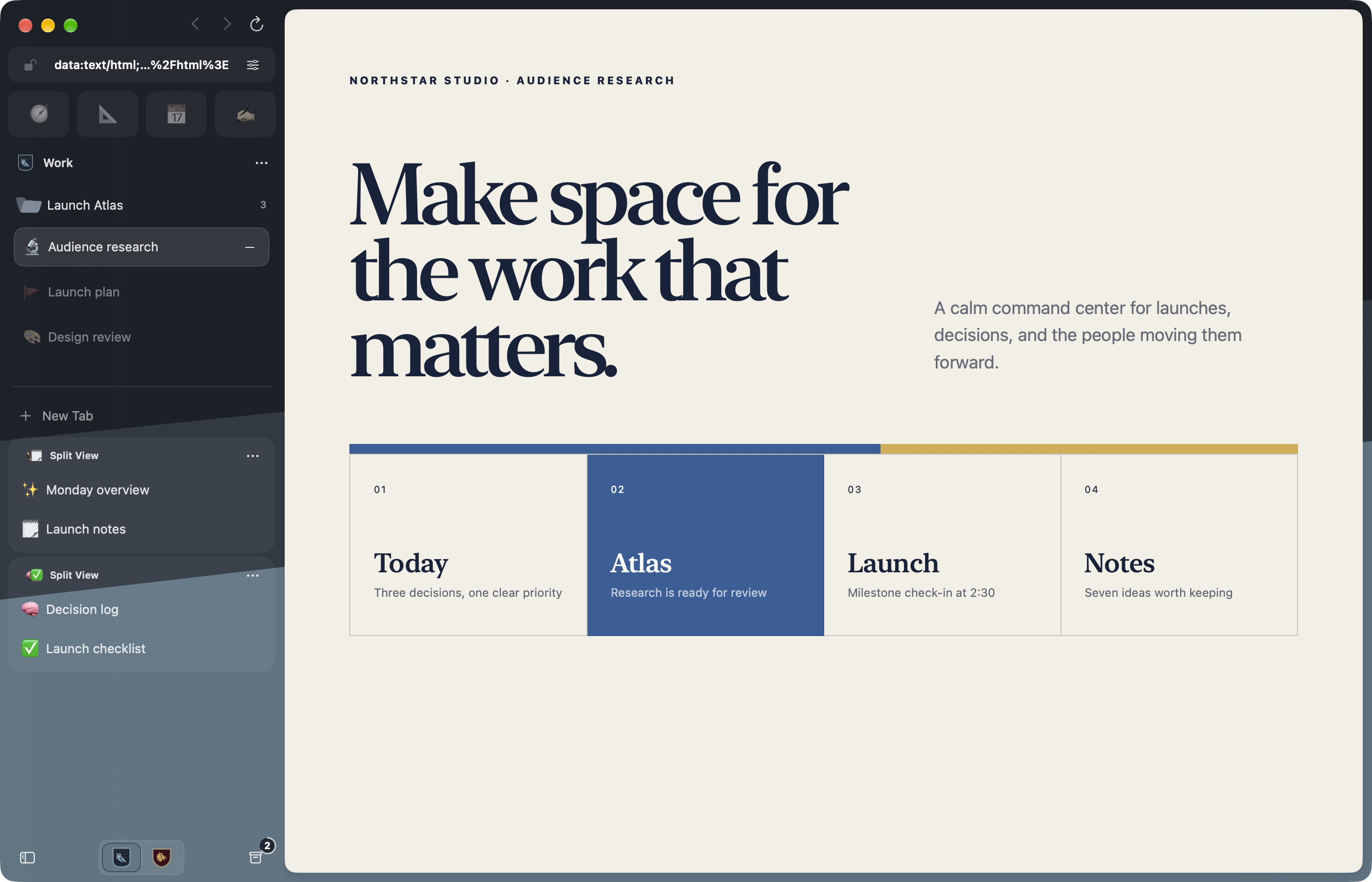
A generous sidebar, native windows, keyboard-first movement, Quick Window, Peek, and automatic localhost tools give the desktop room to work.
Full sidebar anatomy
Native windows and menus
Developer-aware localhost mode
02
Crest for iPad
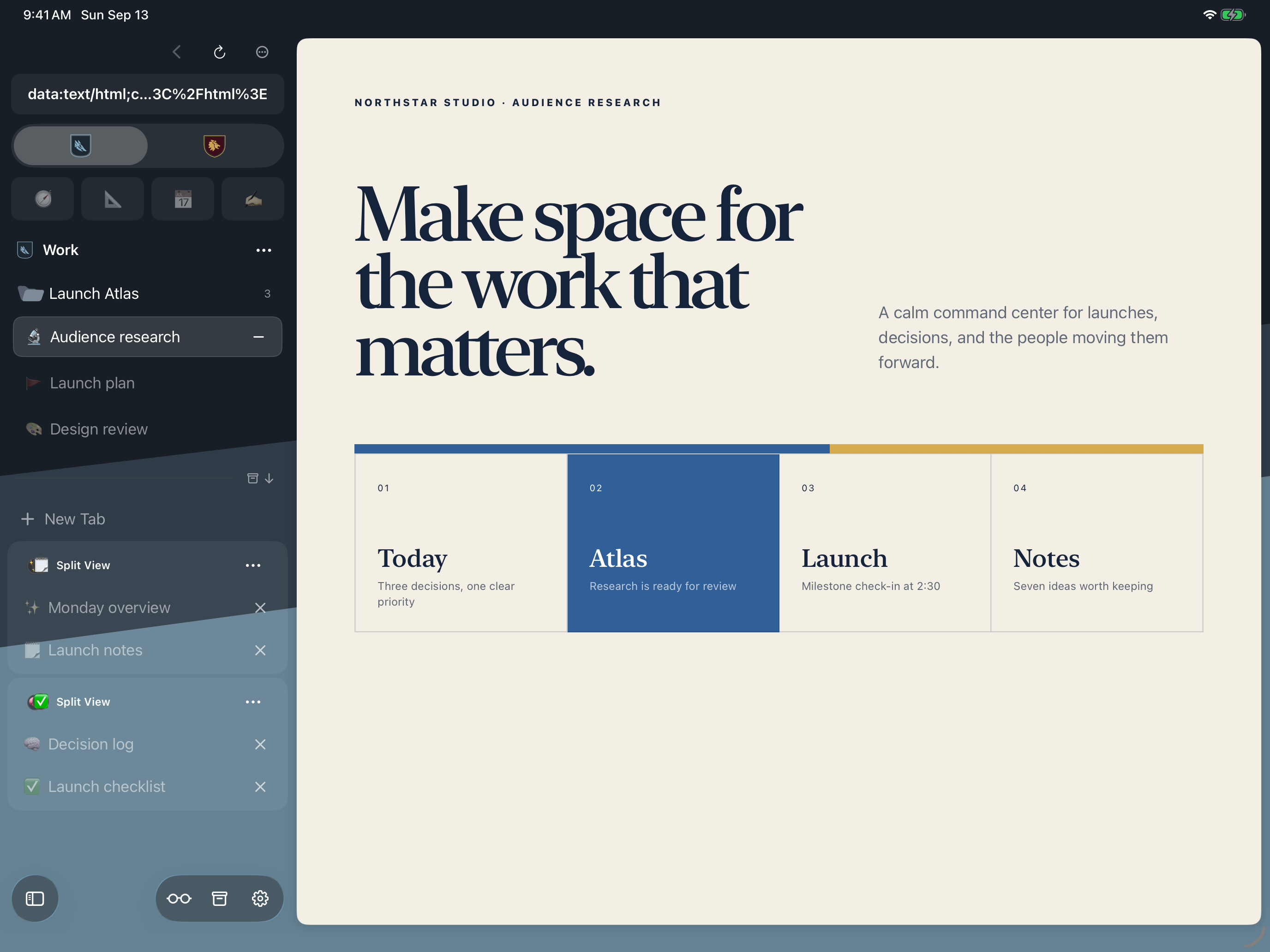
The same structure, made for touch
Keep the sidebar, Space identity, and durable organization without pretending your iPad has a mouse attached.
The whole SpaceRight at hand.
03
Crest for iPhone
Your Spaces within thumb’s reach
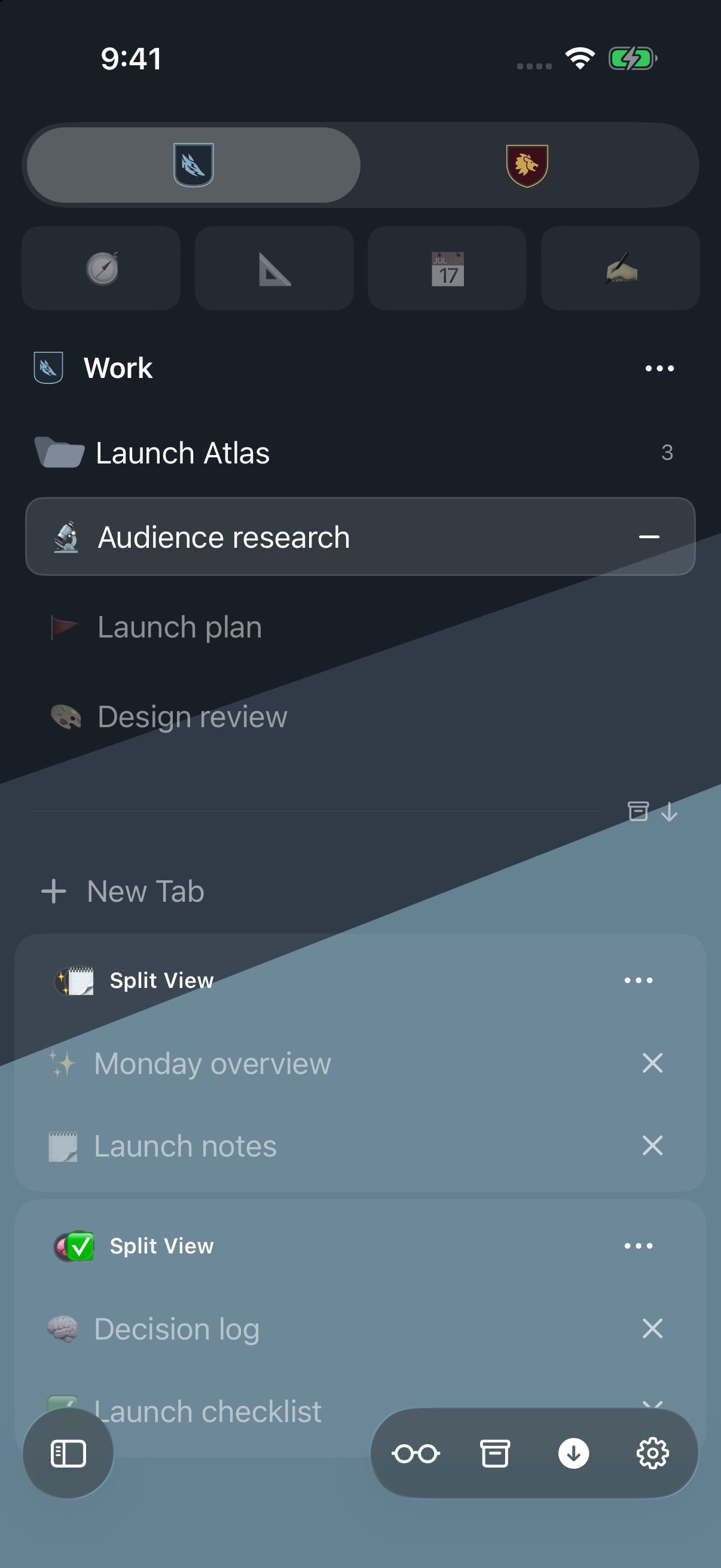
Compact chrome keeps the page primary. Swipe between Spaces, reach the command palette quickly, and open the full sidebar only when you need it.
How the sidebar adapts
Beside the page on larger screens, ready when you need it on iPhone
Mac and iPad keep the sidebar beside the page, where tabs and Spaces remain in view. On iPhone, the page gets the whole screen and the same sidebar arrives as its own view—then slips away the moment you choose a tab.
MacSidebar and page, togetheriPadThe familiar structure, touch-native
01 · Browse
Open sidebar→
02 · Choose
Spaces, properly separated
Every Space is its own browser.
Choose a crest, swipe, or scroll sideways. The entire browser moves with you—sidebar, tabs, signed-in session, history, cookies, passwords, permissions, and WebKit data.
Choose a Spaceor swipe the browser
Work Space · Focused, signed in, ready
One sidebar for the workday.
Work accounts, Launch Atlas, and Monday's tabs stay together. Personal browsing never appears in the same history or session.
Work accounts · Launch Atlas · Monday overview
01
Sessions
Sign into the same site with a different account in every Space.
02
History
Search and revisit only the trail that belongs to the current context.
03
Passwords
Origin-matched Keychain credentials stay attached to the right Space.
04
Website data
Cookies, caches, local storage, and permissions stay inside the Space that created them.
05
Tabs
Pinned, saved, current, recent, and archived each have a clear role.
06
Identity
A crest and palette tell you instantly which boundary you crossed.
Space Forge
Make each Space easy to recognize
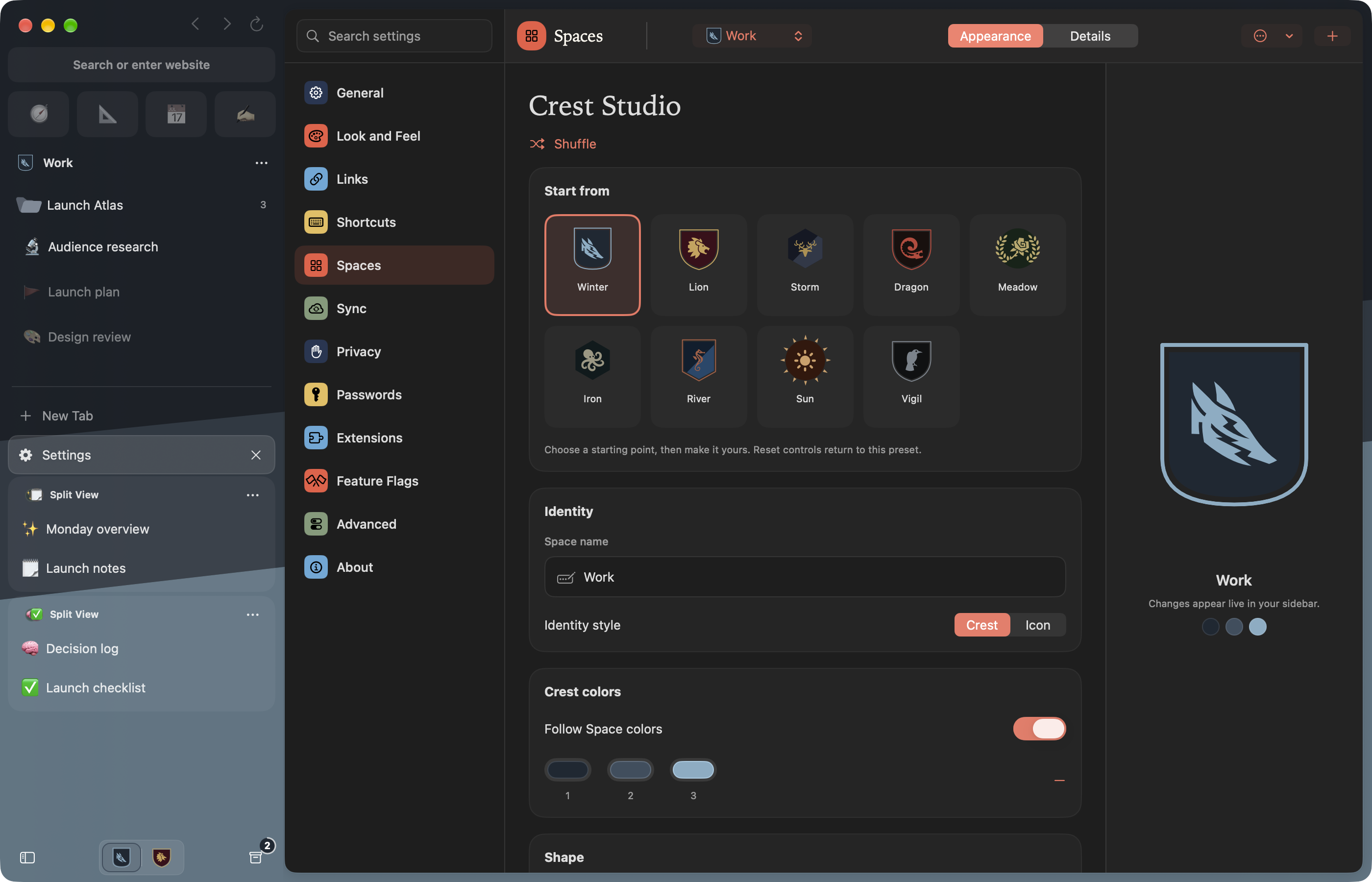
Crest uses the same layered heraldic model you see in the app: choose a backplate, divide the field, add an ordinary, finish the trim, then place one or more charges. Pair it with a shipped house palette or make a new one.
It is not decoration for decoration’s sake. The standard is an immediate signal that your accounts, history, passwords, site data, and tabs have changed with it. Prefer the familiar Arc-style look? Traditional Gradient mode keeps that quieter option close.
ShieldRoundelHexagonLozengeSeal
Forge on Mac
Every layer, visible as you build.
Choose Banner or Gradient, tune the field, and watch the whole sidebar respond while the layered crest stays crisp from picker to toolbar.
The same standard · across your Apple devices
Your identity travels with the Space.
The palette, crest, and presentation mode remain recognizable across Mac, iPad, and iPhone—even while the browser chrome adapts around them.
Traditional Gradient · the familiar Arc-style option
Not every Space needs a coat of arms.
Choose one to three colors, set the direction and intensity, then add optional texture. Traditional Gradient mode preserves the smooth, atmospheric themes Arc users know while keeping Crest’s crest, isolation, and Space identity intact.
Move in without starting over
Bring over the browser you already have
Start on Mac. Crest finds supported browsers and lets you pull in open tabs, bookmarks, saved folders, Spaces or profiles, and supported passwords.
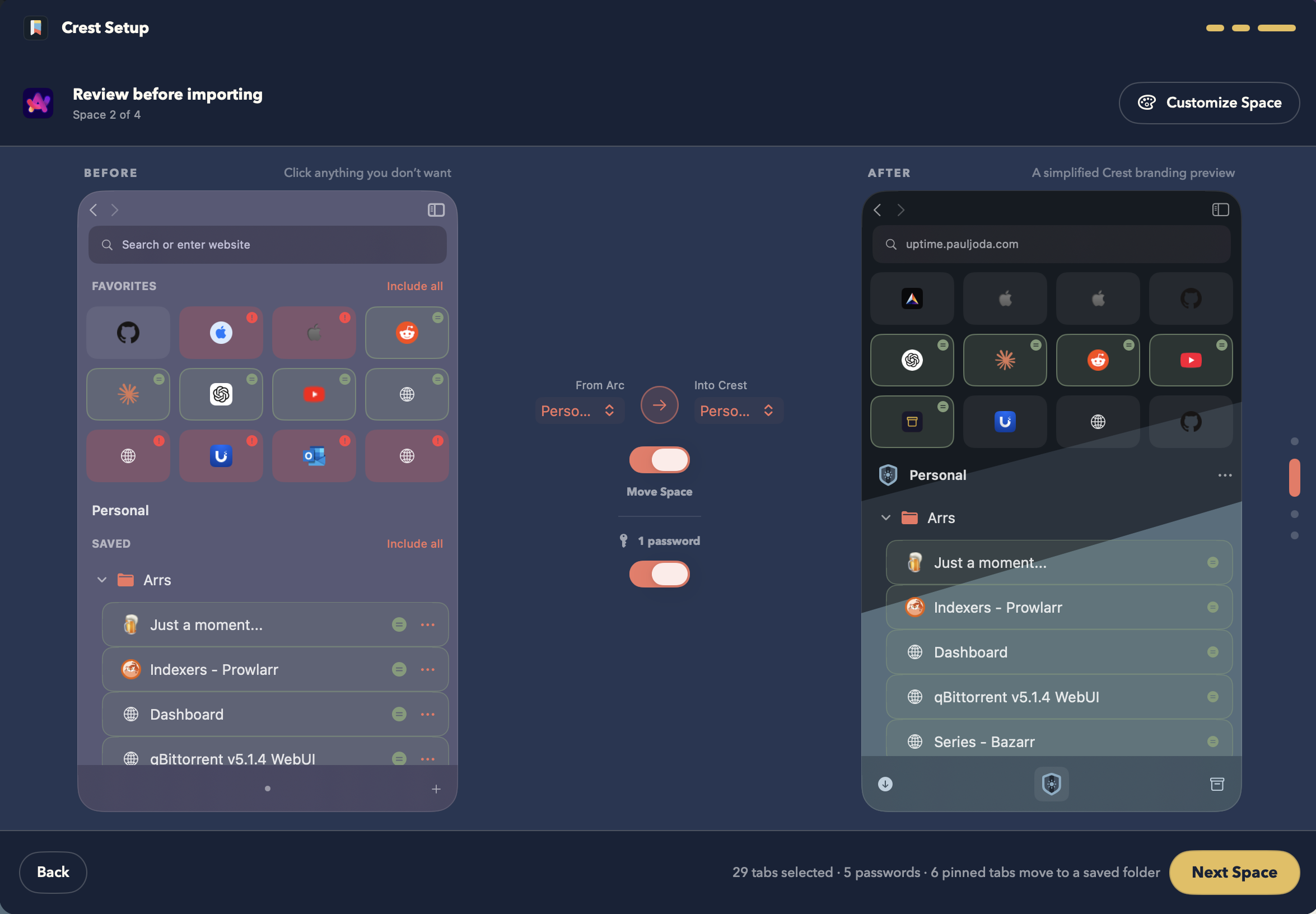
Import is a review—not a data dump. You decide what stays, where it lands, and how each Space should look before Crest changes anything.
01
Choose what to bring over.
Crest discovers the browsers on your Mac and shows exactly which kinds of data each one can provide.
Arc
Spaces, tabs, folders, colors, icons, and passwords
Zen
Spaces, Essentials, pinned tabs, folders, open tabs, and colors
Chrome
Profiles, bookmarks, open tabs, and passwords
Safari
Bookmarks, windows, and open tabs
Firefox
Windows, open tabs, and pinned tabs
Review before importing
Nothing moves until it looks right.
Crest builds a visual before-and-after for every imported Space. Keep or remove individual tabs, include supported passwords, and route the source into a new or existing Crest Space.
01
Keep only what matters.
Turn individual tabs, favorites, and saved folders on or off.
02
Choose where it lands.
Move each source Space into a new Crest Space or combine it with one you already use.
03
Make it unmistakably yours.
Open Customize Space during setup to rename it and edit its colors, crest, and presentation.
One Mac setup, every Apple device. Once imported, your Spaces and tabs can follow you to iPad and iPhone with iCloud.
02See how everything will look before you import it
Extensions on Mac
Bring the extensions you use into the right Space
Crest can install most standards-based extensions from the Chrome Web Store and Firefox Add-ons, and can use compatible Safari Web Extensions from signed apps on your Mac. Some extensions depend on features from a particular browser, so compatibility can vary.
Each Space keeps its own extensions, permissions, site access, and settings. You can add a tool to Work without also adding it to Personal.
Extensions are currently available in Crest for Mac.
01
Chrome Web Store · Firefox Add-ons
Add extensions from their store pages
Crest shows the requested permissions and website access before anything is added.
02
Safari apps
Use compatible WebExtensions already on your Mac
Crest can find WebExtensions included with signed Safari apps and let you choose which Space should use them.
03
Per-Space controls
Keep extensions where they belong
Manage access, pin useful actions, and set shortcuts separately in every Space.
Crest keeps these tools close to the page and quiet until they are useful. Each one belongs to the current Space, so using a convenience never quietly crosses a boundary.
I
Quick Window · Tiny Arc, carried forward
A lighter place for links from other apps
Like Arc’s Tiny Arc, links opened from other apps can arrive in a lightweight browser instead of becoming a durable tab. Quick Window uses the chosen Space’s signed-in session; close it when you are done, or keep it by opening it as a full tab.
II
Peek
Take a quick look without losing your place
Open a link above the page you are reading. Close it to return instantly, or promote it into a full tab when it earns a place.
III
Localhost mode
Developer tools that appear when you open localhost
Open localhost and Crest reveals a dedicated toolbar for reload options, responsive capture, console, network, and inspection. Leave localhost and the extra chrome leaves with it.
⌕
Command palette
Search the web, find any open tab, and move around without leaving the keyboard.
◇
Crest Passwords
Origin-matched credentials in the Keychain, protected by device authentication.

Reader mode
Turn supported pages into a calm, native reading surface without leaving the current Space.
⇄
Portable and synced
Import browser data, export a validated archive, and carry durable state through iCloud.
☾
Actually private
A non-persistent Space that leaves normal history, restoration, and sync behind.
⌁
Native where it matters
SwiftUI, WebKit, CloudKit, and Keychain—not a desktop wrapper stretched across devices.
Crest is still growing
Try the beta and share how it feels
Join the Crest beta in TestFlight and share feedback, ideas, or bug reports in r/CrestBrowser. Release notes and community conversations help shape what needs attention next.
Crest is a personal project shaped by the parts of Arc worth carrying forward, the things that could work differently, and a lot of care for how a browser should feel on Mac, iPad, and iPhone.